Talent Library
Browse, search, filter, and manage your entire talent roster from the Talent Library.
Overview
The Talent Library displays your entire talent roster in a browsable grid. From here you can:
- View all talents at a glance
- Search for specific talents
- Filter by status, visibility, type, and more
- Sort by name, recently updated, or recently created
- Access talent profiles and quick actions
- Create new talents
Accessing the Talent Library
Navigate to Talents in the sidebar to open the Talent Library.
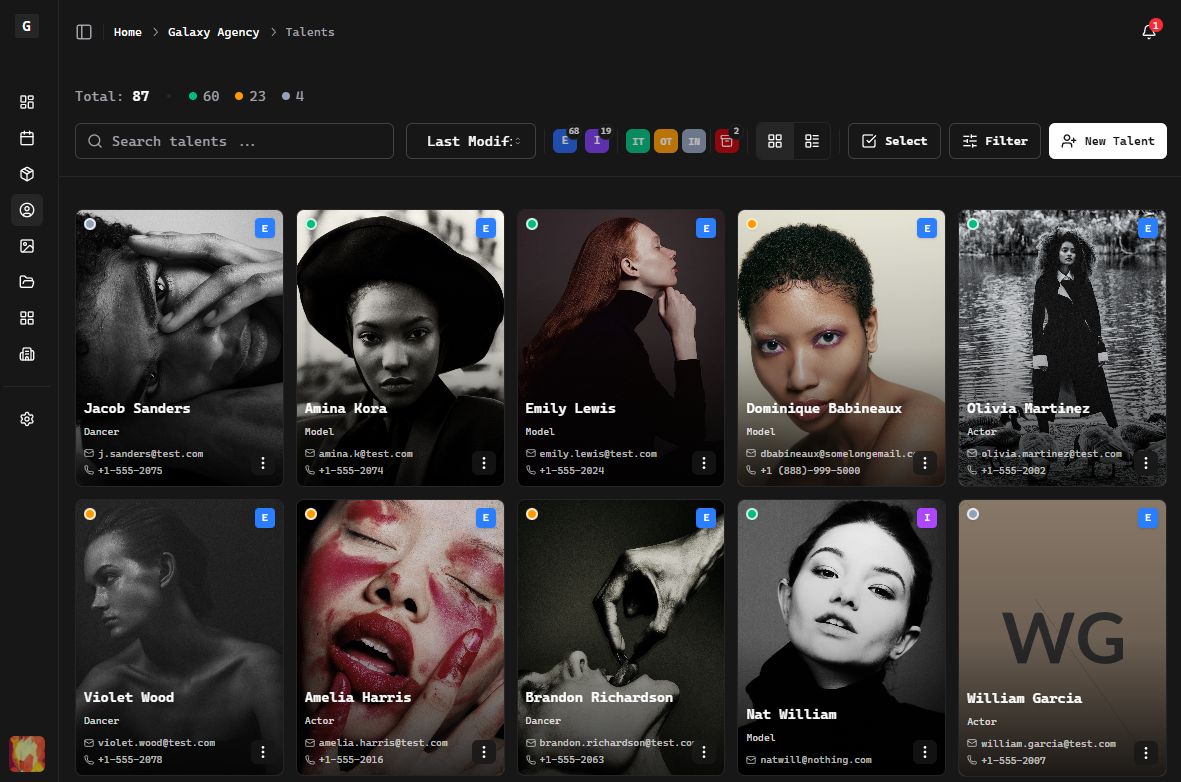
Toolbar
The toolbar at the top of the Talent Library provides:
- Search bar – Find talents by name
- Sort dropdown – Change the sort order
- Indicator Filters – Quick filters based on status
- View toggle – Switch between grid and list view
- Filter button – Open additional filter panel
- + New Talent – Create a new talent profile
Talent Cards
Each talent appears as a card showing:
- Profile photo – The talent's main photo or avatar initials
- Name – First and last name
- Talent type – Category badge (Model, Actor, etc.)
- Status indicator – Color-coded ring around the photo showing availability
- Visibility badge – Internal or External indicator
Status Colors
The colored ring around each avatar indicates the talent's status:
| Color | Status |
|---|---|
| Green | In Town (available) |
| Amber | Out of Town (temporarily unavailable) |
| Gray | Inactive |
Searching and Filtering
Search
Use the search bar to find talents by name. Results update as you type.
Filters
Filter your talent list using these options:
| Filter | Options |
|---|---|
| Status | In Town, Out of Town, Inactive |
| Visibility | Internal, External |
| Type | Model, Actor, Photographer, etc. |
| Archived | Show archived talents |
Filters can be combined to narrow down your results. Active filters appear as chips that can be cleared individually or all at once.
Sorting
Sort the talent list by:
- Name (A-Z or Z-A)
- Recently updated
- Recently created
Quick Actions
Each talent card has an action menu (⋮) with quick actions:
- View Profile – Open the talent's full profile
- Edit – Open the edit form
- Change Status – Switch between In Town, Out of Town, Inactive
- Change Visibility – Toggle between Internal and External
- Archive – Move to archived list
In the archived view, active-roster actions are replaced by archive-specific actions.
These actions let you manage talents without opening their full profile.
Creating Talents
Click the + New Talent button to create a new talent. See Creating Talents for details.
Viewing Archived Talents
Archived talents are hidden from the main library view by default. To see them:
- Click the Filters button
- Enable the Archived filter
- Archived talents appear with a visual indicator
To restore an archived talent, use the action menu on their card or open their profile.
Archived talents can also be scheduled for profile cleanup when representation has ended. See Talent Profile Cleanup before starting that workflow.
Bulk Selection
Bulk selection allows you to perform actions on multiple talents at once.
Entering Bulk Mode
- Click the Select button in the toolbar
- Click on talent cards to select them (selected cards show a filled circle)
- A selection bar appears at the bottom of the screen
Selections apply to the current page. Changing the account, page, or filters clears the selection so hidden talents are not included by mistake.
Selection Bar
The selection bar shows:
- Selected count – Number of talents currently selected
- All – Select all visible talents
- None – Deselect all talents
Bulk Actions
| Action | Description |
|---|---|
| Set Status | Change status to In Town, Out of Town, or Inactive for all selected talents |
| Set Visibility | Change visibility to External or Internal for all selected talents |
| Archive | Move every selected talent to Archived with one required reason. You can also apply one representation end date and note to selected talents who have a current representation. Talents without one are still archived. |
| Add to | Add selected talents to a Board or Package and explicitly use each Default Portfolio or choose another eligible Portfolio |
Bulk Archive is all-or-nothing. If any selected profile is no longer eligible, none of the selected talents are changed. Archiving does not schedule or start profile cleanup.
In the archived view, bulk actions are limited to archived-roster actions. Scheduled cleanup is handled one talent at a time so your team can review that profile's media and document decisions.
Exiting Bulk Mode
Click the X button on the right side of the selection bar to exit bulk mode and clear your selection.
Tips
- Use filters to focus – When working with a specific talent type or status, apply filters to reduce clutter
- Quick status changes – Use the action menu to change status without opening profiles
- Search by name – The search is fast and updates as you type
Related
- Creating Talents – Add new talents to your roster
- Talent Profiles – Understanding profile structure
- Boards – Organize talents for client presentations